

Products
Banclo lets your bank originate more than mortgages. A Product is a complete, self-contained definition of something an applicant can apply for — a home loan, a personal loan, car finance, a credit line, and so on. Each product carries its own application workflow, calculations, document templates, rate cards, client-facing journeys and automated-assessment settings.
Once you define and activate a product, applicants can apply for it through the client portal and your staff process those applications in the agent portal — all without any engineering changes.
You will find this under Settings → Products.
Why Products Matter
Before products, the platform assumed every application was a mortgage. With products you can:
- Launch new credit products yourself — define a personal loan or car finance offering using the same platform, staff and client portal.
- Reuse what you already have — a calculation or document template built for one product can be attached to another, so you maintain it once.
- Keep applications stable — every application is locked to the exact version of the product configuration that was live when it was created. Later changes to the product's structure (its workflow, or which pieces are attached) won't affect work already in progress — though live edits made directly to a shared formula or template are an exception (see Reusable Pieces).
The Product List
Settings → Products shows every product defined for your bank as a set of cards. Each card shows the product's name, its code, its current version and its status.
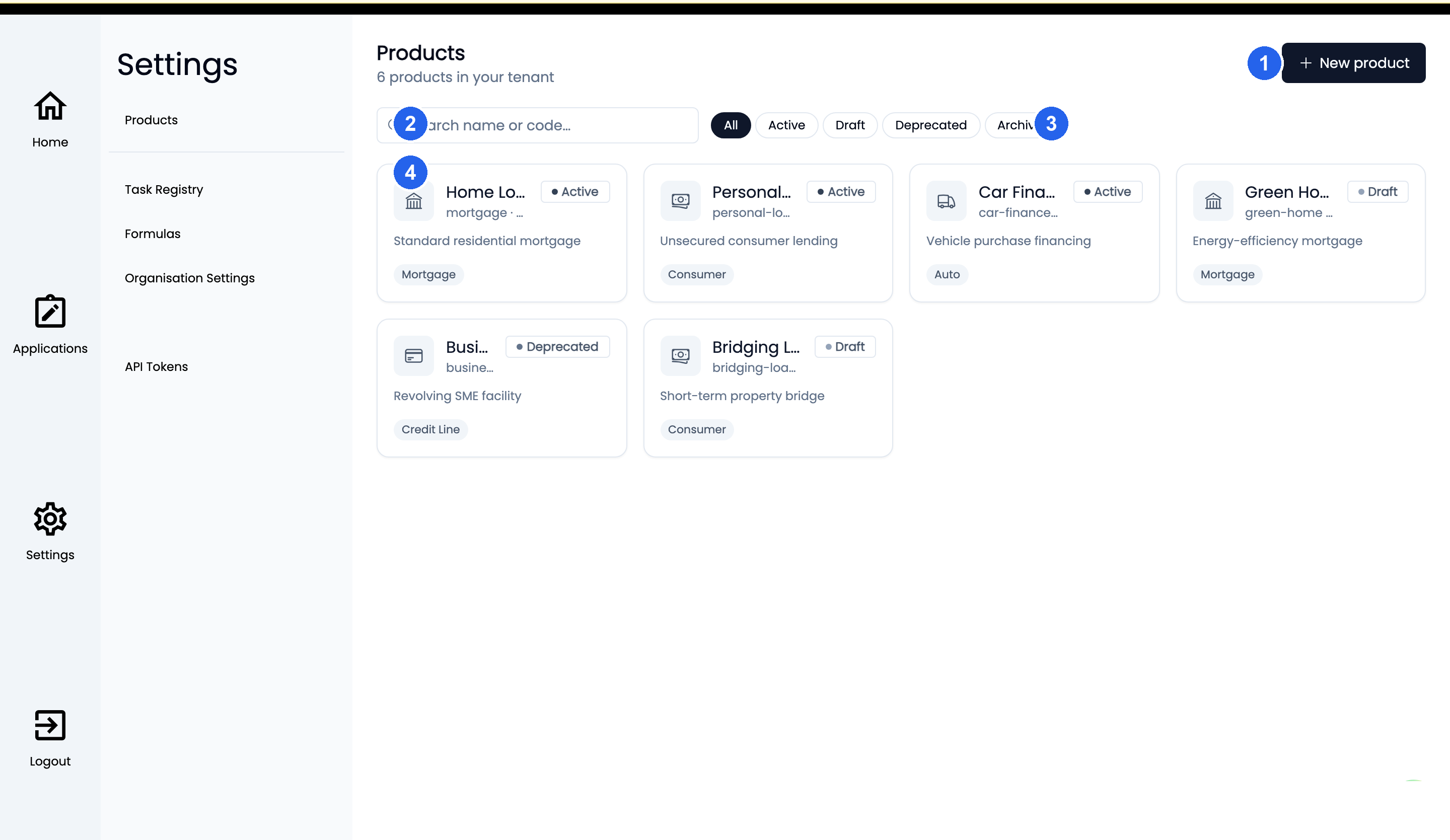
- New product — start a new product (this creates a draft).
- Search — find a product by name or code.
- Status filters — narrow the list by lifecycle status (Active, Draft, Deprecated, Archived).
- Product card — shows the product's name, code, version and status; click it to open the product builder.
From here you can:
- Search by name or code.
- Filter by status: All, Active, Draft, Deprecated or Archived.
- Click New product to create one.
- Click any card to open the product builder.
Building a Product
Opening a product takes you into the product builder — a workspace with a side menu of panels. A small status dot on each panel tells you at a glance whether it is empty (grey), configured (green) or has a problem (red).
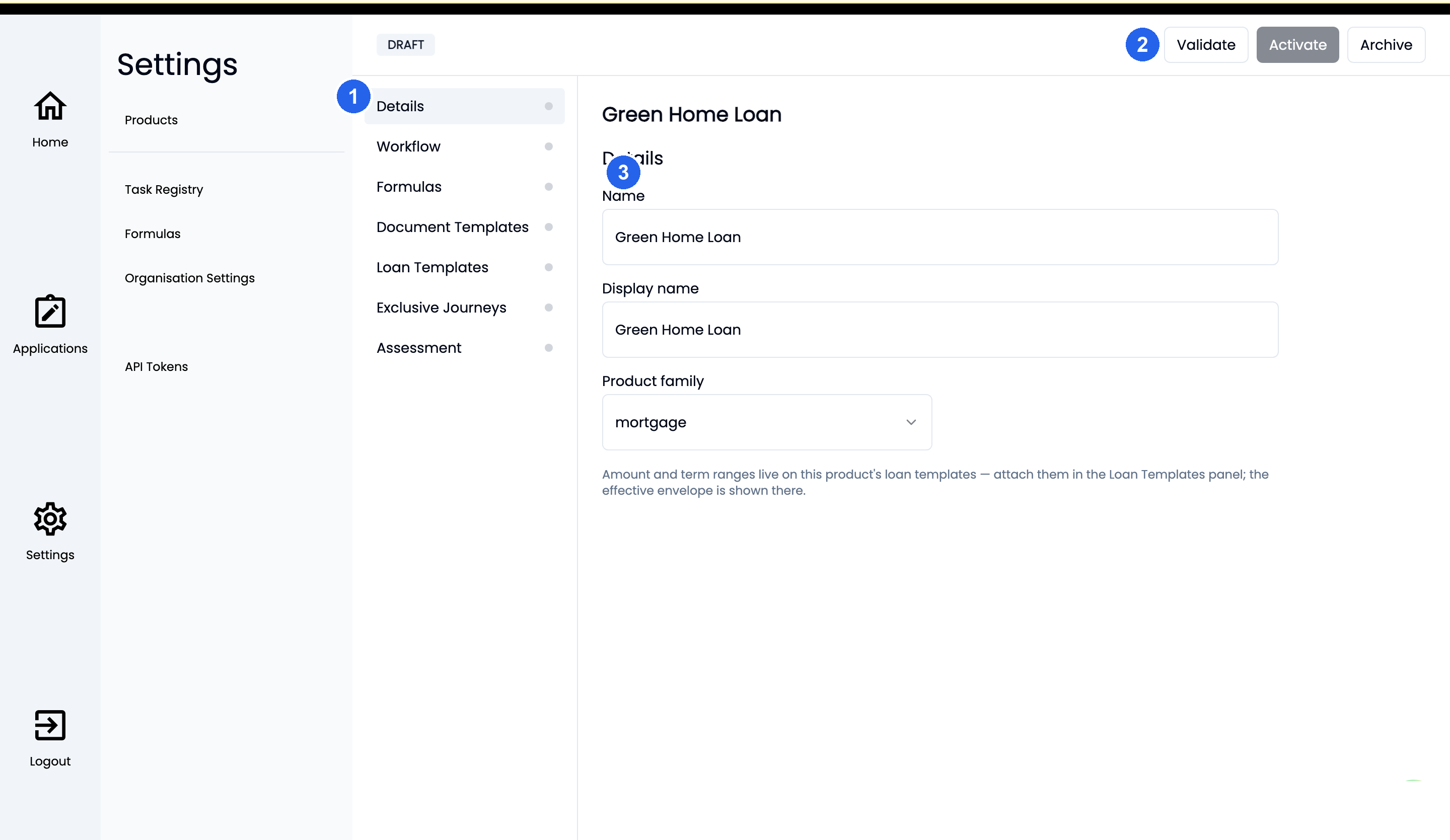
- Panel menu — the seven areas you configure for the product (Details, Workflow, Formulas, and so on).
- Lifecycle bar — the product's current status (here, Draft) and the actions available from it (Validate, Activate, Archive).
- Panel settings — the configuration for the panel you have selected.
| Panel | What you set up here |
|---|---|
| Details | The product's name, display name, description, product family (e.g. mortgage, consumer, auto, credit line) and the workflow it uses |
| Workflow | The application's stages and transitions, edited visually on a designer canvas |
| Formulas | The calculations the product needs |
| Document Templates | The documents the product generates (e.g. ESIS, offer letter) |
| Loan Templates | The rate cards available for the product; the resulting amount and term range are shown for you |
| Exclusive Journeys | The branded client-facing entry points (themes) that offer this product |
| Assessment | The automated risk-assessment settings for the product |
Product Family
Every product belongs to a family — for example mortgage, consumer, auto, SME, or credit line. The family tells the rest of the platform what kind of product this is, so staff see the right terminology and the right columns for it in the agent portal. Non-lending families (such as KYC or onboarding) use the same builder.
Reusable Pieces
Formulas, document templates and rate cards are reusable pieces: they belong to your bank, not to a single product, and the same piece can be attached to several products at once.
On a product panel you can:
- Attach an existing piece using the picker.
- Create a new piece inline (it is attached automatically).
- Detach a piece you no longer need.
Seeing Where a Piece Is Used
Because one piece can be shared by many products, each formula and document template has a "Used by Products" panel on its own page. This shows every product that currently references it.
WARNING
Reusable pieces are shared live. When you edit a formula or template, the change applies to every product that uses it — including applications already in progress that are pinned to those products. The admin screen warns you which products will be affected before you save. If you need one product to differ, create a separate copy of the piece and attach that instead.
Checking a Product Before Going Live
A product cannot be activated until it passes validation. Use the Validate button at the top of the builder at any time. The validation report lists each check and whether it passed, for example:
- Required configuration is present.
- Calculations referenced by the product actually exist.
- The workflow has no dead-ends (every stage can be reached and completed).
- Document templates have the variables they need.
Where a check fails, a Fix action takes you straight to the panel — and even the specific workflow element — that needs attention.
Product Lifecycle
A product moves through a clear set of states. The lifecycle bar at the top of the builder shows the current state and offers the actions available from it.
| State | Meaning | Available actions |
|---|---|---|
| Draft | Being built; not yet available to applicants | Validate, Activate |
| Active | Live; new applications use this version | Validate, Deprecate, New version |
| Deprecated | Retired from new applications, but still valid | Validate, Reactivate, Archive |
| Archived | Permanently retired | — |
Only one version of a product can be active at a time.
Versioning
When you need to make a material change to a live product, use New version. This creates a fresh draft copy (the next version number) with all the existing configuration carried over. You edit and validate the new version, then Activate it — at which point the previous version is automatically deprecated.
TIP
Small corrections can be made in place on the live version — the builder reminds you that "edits apply in place to this version; create a new version for material changes." Every edit is recorded in the audit log either way.
Rolling Back
If a newly activated version needs to be withdrawn, open the previous (deprecated) version and choose Reactivate. It becomes the active version again and new applications use it — with no loss of data.
Archiving
Archive permanently retires a deprecated version. A product cannot be archived while applications are still in progress against it — the platform refuses and tells you which applications are blocking the action.
Applications Are Pinned to a Version
Every application is pinned to the product version that was active when it was created. This means:
- Changing or versioning a product's structure — its workflow, or which formulas, templates and rate cards are attached — never disturbs applications already in flight; they continue on the version they started on.
- New applications always use the current active version.
There is one deliberate exception: because reusable pieces are shared live, a direct edit to the contents of a formula or template applies everywhere that piece is used, including in-flight applications (see Reusable Pieces). Pinning protects an application from changes to which pieces a product uses, not from edits made inside a shared piece itself.
Automated Assessment per Product
The Assessment panel lets you tailor automated risk assessment for the product — whether it is enabled, which model is used, and the decision time limit. Any setting you leave unset is inherited from your bank's defaults, and then from the platform defaults, so you only override what you need to.
Client-Facing Journeys
The Exclusive Journeys panel links a product to your branded client-facing entry points (themes). A journey that offers a single product sends every applicant straight to it; a journey that offers several products uses a short determination step to route each applicant to the right one. Branding (logos, colours, domain) continues to be managed through Exclusive Theming.